
Accounting for Offset
- dreamwriterariaros
- Aug 23, 2025
- 4 min read
Updated: Apr 6
Update: I was told to remove the black. Done below; this is what it looks like when you do.

A note on the interior preview of Amazon: Binding width is found on their site calculators, but Libre Office Draw rounds to two digits; you will not hit it perfectly as a result. They have come back finally and informed me that under the burial of their documentation they do not do two page spread books for this reason. We weill be going to traditional publishing as a result. They can remove the preview feature of the book.
I have decided as a result to seek a professional publishing house and will as soon as a better option for the kids deserve the best experience.
It will take me time to get them the best reader experience.
The book is not broken when I look at it, but it will display the black gutter created in the previewer. The black creates a shadow effect that when this slight pulls the mind across and to ignore it.

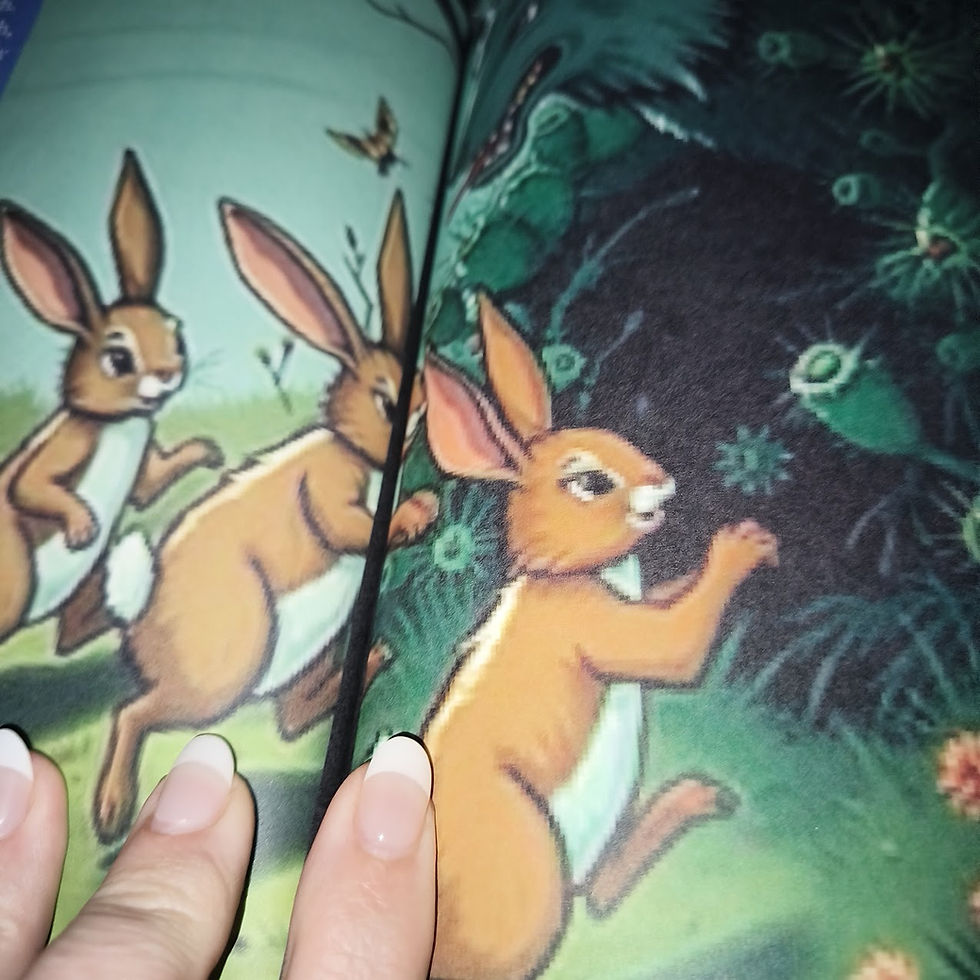
But if you're going to use Libre that is the limitation. For this size of book, Amazon recommends a .375 offset, but you can't do it. The offset will round to either .38 or .37 one pulls the image inside, and the other the black displays. Black is better than blazing white.
And InDesign actually did not offset anything in my book. I understand that it might be my lack of experience with the software, but before you even get to figuring out that first the software has to be able to convert your images. My books tend to be supersized as my mind goes on adventures, and someone told me to drop the quality of my pictures because I will be charged extra for data service fees, and the items only need to be 300 dpi.
But to me, quality is everything, and that's why after these issues, I am going to look for either traditional services, save for correct software, or pay for a print house to set the book.
I will take a loss to ensure my reader has a great dream as they fall into their images, which help spark their imagination.
I tried using a different software, InDesign, but its free show-off feature placed the pages exactly where I had them in the PDF file, in the same place, and that wasn't making up for the offset, but it might be my inexperience with the software.
But instead of worrying over the software not doing as reported, I went back to my LibreOffice and did the hard work, only to later discover no amount of hard work will solve the .375 offset KDP publishing house needs.
The first thing I did was find the offset of the left and the right internal margins, and then I applied that basic offset to the entire book. After that, it involved making minor adjustments and checking pages against Amazon's preview ruler.
It's just an adjustment of pulling back in those side images on the right side of a left-hand page and the left side of a right-hand page, and it can take you a little time. You can sometimes get away with not making adjustments to every page if you don't mind minor discrepancies when they print, and if you give a proper initial offset, it might work for you.
Why only the internal one? I want the image to spread across the entire page. However, without the offset to the internal margins, you lose the magic of the two-page spread, and the photos get pulled into the middle, making it not a good experience.
There was a lady with templates for doing pages on Canva, but I noted as I watched the tutorial that her pages had no offset. It was a collection of images. Maybe it does work for an offset, but I decided instead to work with LibreOffice in the end. I will try her version soon and let you know if it works, but you can find the internal margin with work with the beautifully free open-source work of LibreOffice with time and effort. I appreciate their generosity, as they offer it for both business and personal use, which I find very valuable. Gifts like this are amazing, and it’s been a good software for me, even if it has a few quirks.


Now in LibreOffice, when I set my first page, I set the arrow indent markers at those points and start there. I apply this to every picture, right or left, as needed. Then I worry about fine-tuning because I do have a general idea from the first page set of where all pages should relatively end up. This makes it quicker, and then I decide if the Amazon previewer indicates a discrepancy that is too high; I must adjust the page or pages to ensure a good reader experience throughout.
The above images show my baseline offset for the left and right page for an 8.5x8.5 book page. It's not likely to be perfect, and different companies use different processes, and the binding that is ultimately used is what you need to consider, as that makes a huge difference.
Unfortunately, I will be moving my books out of Amazon for children's print books. But the Catalog will keep being built and that is fine. It took Dr. Seuss a bit himself to get published and as he did, he kept on trucking.


Comments